
If you're looking for the best AI notetaker for Zoom, you have more options than you might expect.
Zoom now includes its own Zoom ai notetaker, Zoom AI Companion, built into all paid plans. But it has real constraints that catch users off guard: no cross-platform support, no CRM integrations, and no free plan.
Third-party tools fill those gaps. Some join your calls as a bot and deliver full transcripts with AI summaries. Others run as Chrome extensions with no visible participant. Free options exist across both categories.
The challenge is knowing which tool fits your situation. If you're on a paid Zoom plan and only use Zoom, the built-in option may be enough. If you're on the free plan, need cross-platform support, or want your meeting notes flowing into a CRM, you'll need something else.
This article compares the best ai note taker for Zoom options in 2026, starting with what Zoom gives you natively, then covering the third-party tools worth considering.
Does Zoom Have a Built-In AI Note Taker?
Yes. Zoom AI Companion is included with all paid Zoom Workplace plans (Pro at $14.16/user/month, Business at $18.33/user/month, and Enterprise). It is not available on the free Zoom plan.
AI Companion handles smart meeting notes, post-meeting summaries with action items, chapter markers, and in-meeting Q&A ("catch me up" for late joiners). It works natively inside the Zoom client with no additional software required.
For business accounts, an admin may need to enable AI Companion in account settings before users can access it. If you don't see the option, check with your Zoom admin.
What does Zoom AI Companion include for meeting notes?
AI Companion generates a structured meeting summary after each call, organized by topics discussed, key decisions, and suggested next steps. This Zoom meeting summary is delivered to the host and stored in the Zoom dashboard. It also extracts action items with owners.
During the meeting, participants can ask AI Companion questions about what was discussed so far.
AI Companion also generates chapter markers that break longer meetings into navigable sections, making it easier to jump to specific discussion points without scrubbing through a recording.
Smart notes can be configured with custom templates for different meeting types, though template customization options are more limited than what third-party tools offer.
Limitations of Zoom AI Companion
Zoom notes from AI Companion work only within the Zoom ecosystem. If your team also uses Google Meet, Microsoft Teams, or other video conferencing tools, you'll need a separate solution for those calls.
There are no CRM or Slack integrations for pushing notes into your existing workflow. It cannot transcribe an existing recording after the fact, so if you forgot to enable it or need to revisit an old call, you're out of luck.
Language support covers approximately 36 languages, which falls short for teams needing broader multilingual coverage. And the entire feature is restricted to paid plans, locking out free Zoom users completely.
On Zoom's free plan or need support across Google Meet and Teams too? Fireflies transcribes all three, at no cost.
The Best Third-Party AI Notetaker Options for Zoom
Third-party Zoom ai notetaker tools solve the gaps that Zoom AI Companion leaves open: cross-platform coverage, CRM and Slack integrations, free plans, recording upload, and broader language support.
Fireflies is the most complete option across these categories.
Fireflies: Step-by-Step Setup and What You Get
Fireflies works on any Zoom plan, including free. It also works across Google Meet, Microsoft Teams, Webex, and other platforms, so you only need one tool to record and transcribe meetings from any call.
How to connect Fireflies to Zoom:
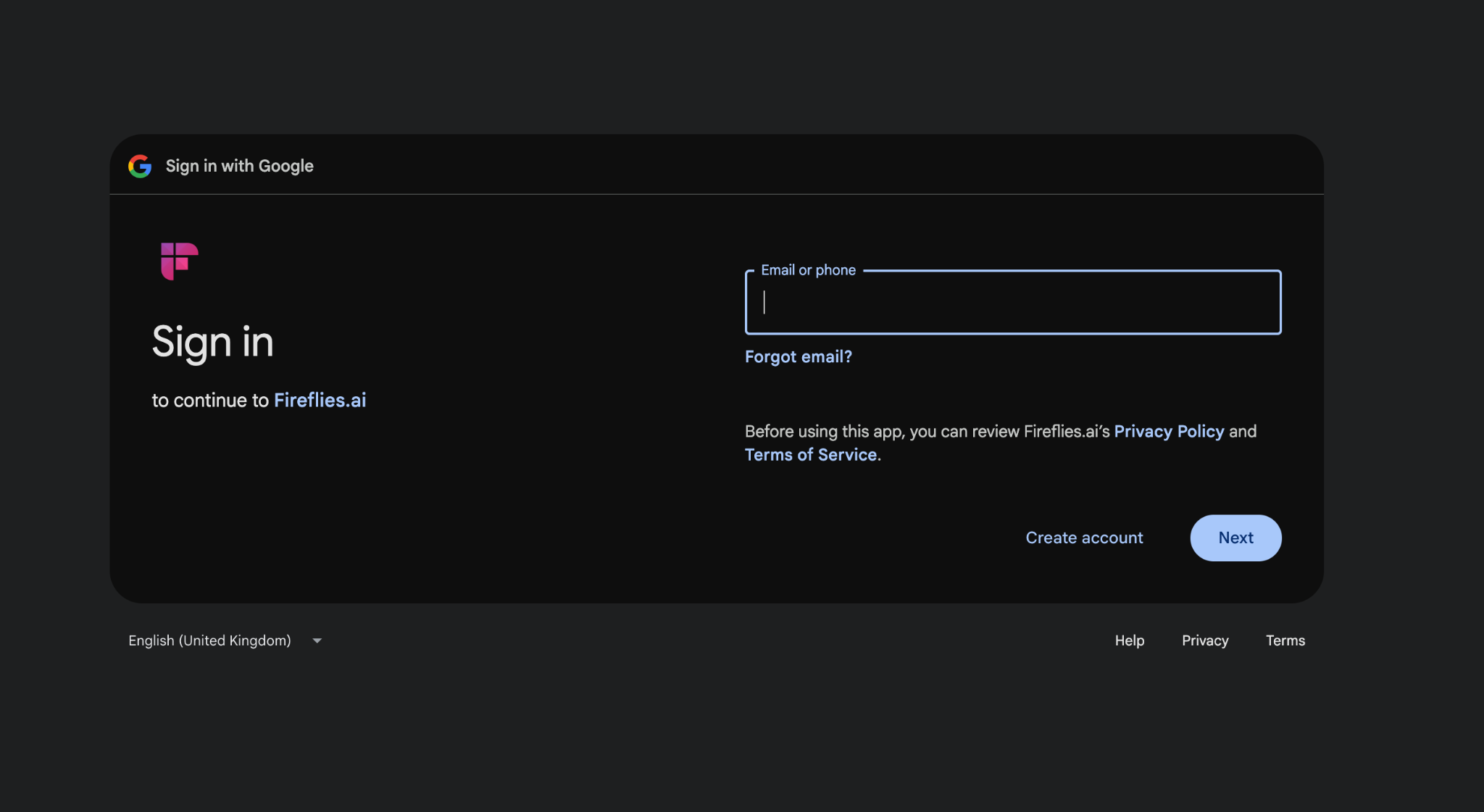
- Sign up at fireflies.ai and connect your Google or Outlook calendar.
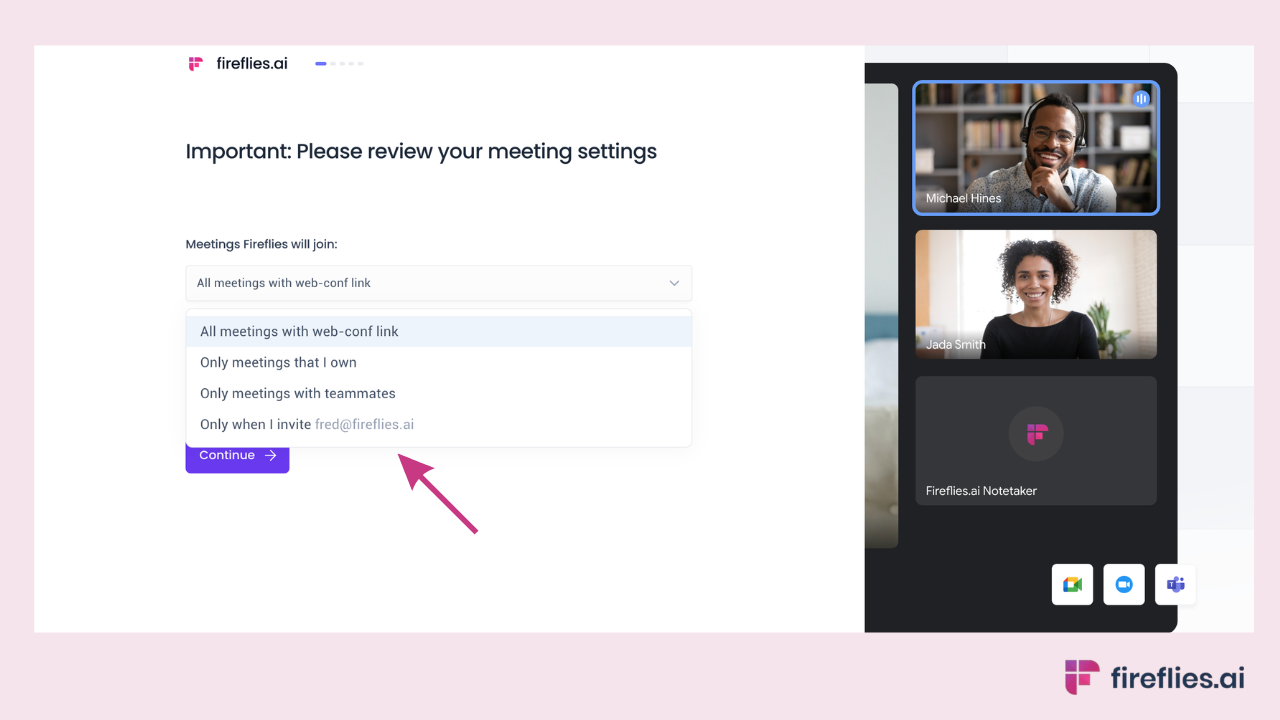
- Configure auto-join settings on your Fireflies dashboard. Choose which meetings Fireflies should join: all meetings, only ones you own, only meetings with teammates, or only when you manually invite [email protected].
- Fireflies joins your Zoom call as a visible participant called Fireflies AI Notetaker. Admit it when the join request appears.
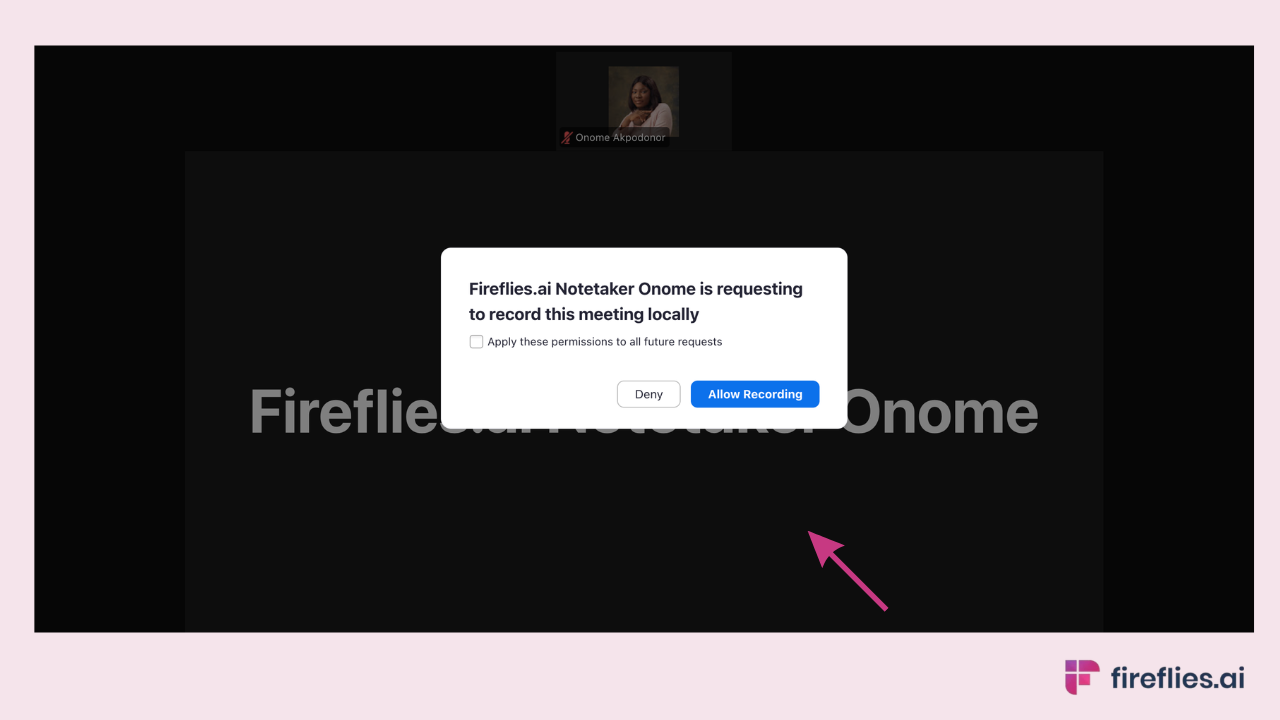
- After the meeting, find your transcript and summary in the Fireflies dashboard under My Meetings. A recap email is sent automatically.
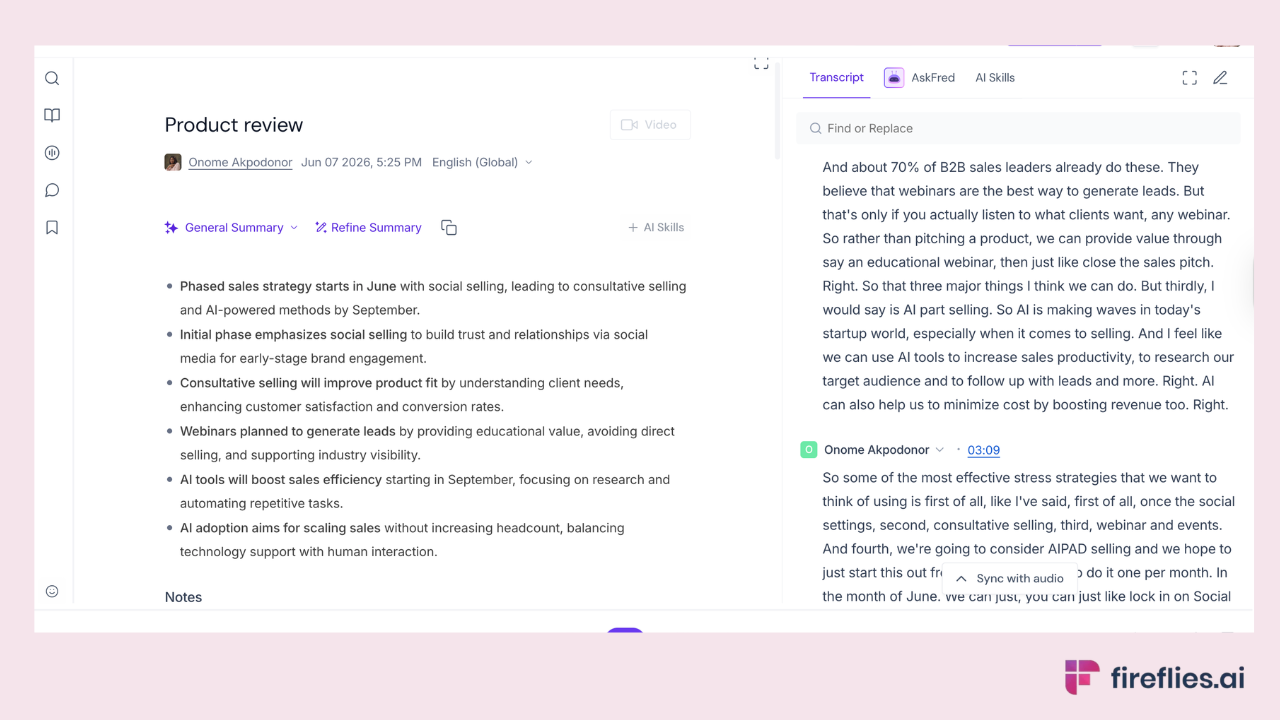
For meetings already in progress, go to your Fireflies Dashboard > Capture > Add to live meeting > paste the Zoom link > click Start Capturing.
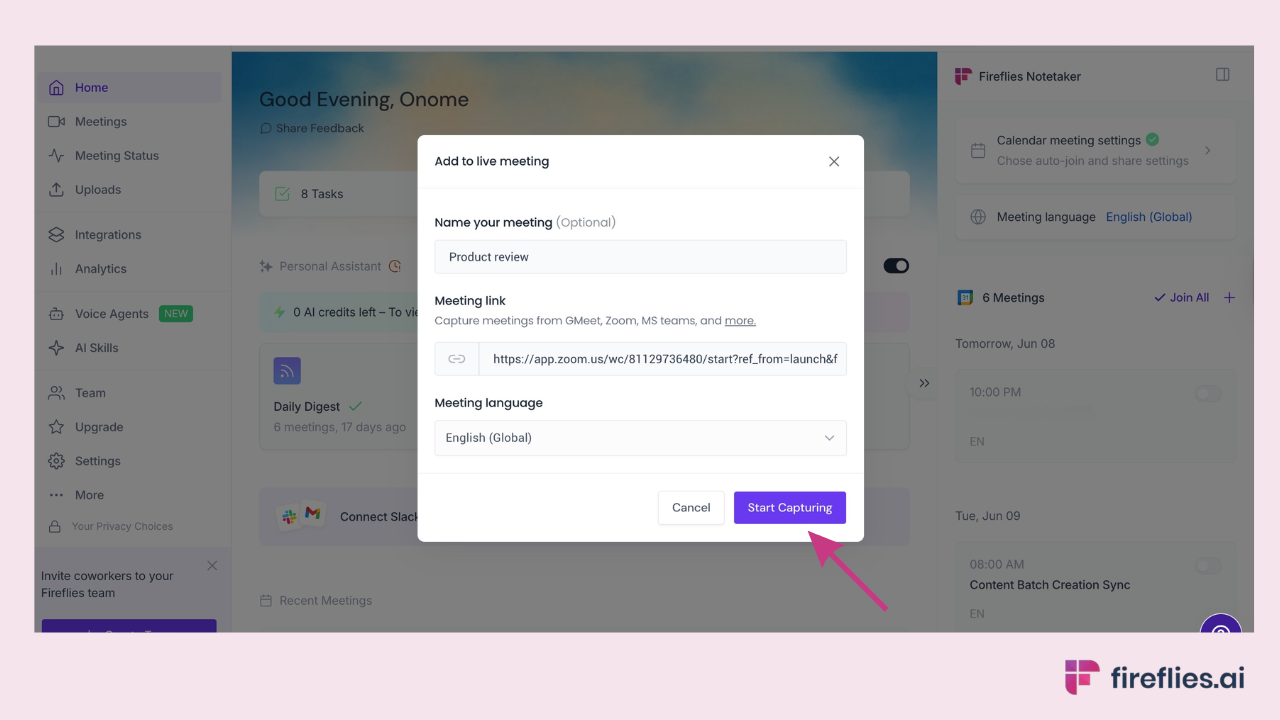
Fireflies also offers a Chrome Extension for bot-free recording directly from your browser, and a Desktop App for capturing system audio without any bot joining the call.
What Fireflies captures:
Every meeting generates a full transcript with speaker identification, an AI meeting notes summary organized by topics and decisions, and automatically extracted action items. Paid plans start at $10/user/month. Video recording and sentiment analysis are available on Business plans and above.
Sentiment analysis tracks the emotional tone of the conversation, flagging sections where participants expressed concern, enthusiasm, or disagreement. This is particularly useful for sales teams reviewing prospect calls or managers coaching their team on client interactions.
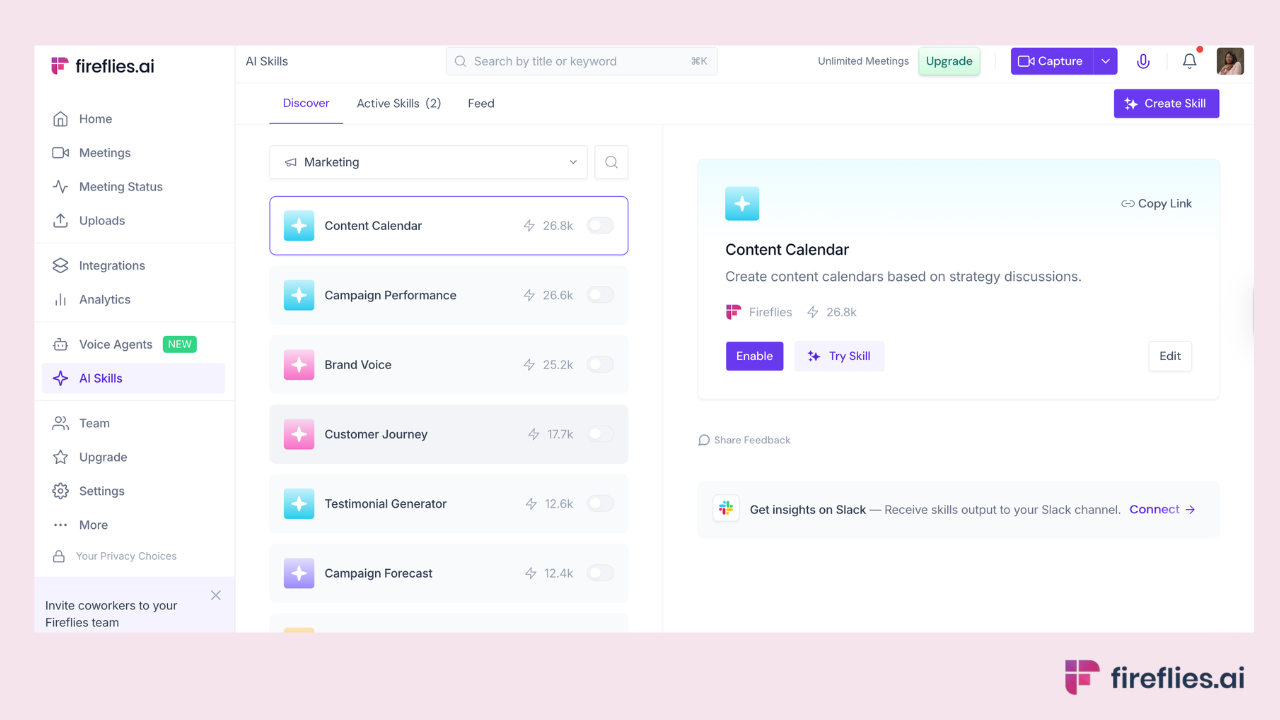
Fireflies also supports AI Skills, 200+ pre-built automations that handle post-meeting tasks: filling CRM fields after sales calls, drafting follow-up emails, scoring candidates after interviews, and generating role-specific recaps for different stakeholders.
AskFred lets you query the transcript naturally.
Fireflies integrates with Salesforce, HubSpot, Slack, Notion, Asana, and 100+ other tools. Transcription accuracy reaches 99% for English and 95% for other languages, with support for 100+ languages.
What the output looks like after a 28-minute sales call:
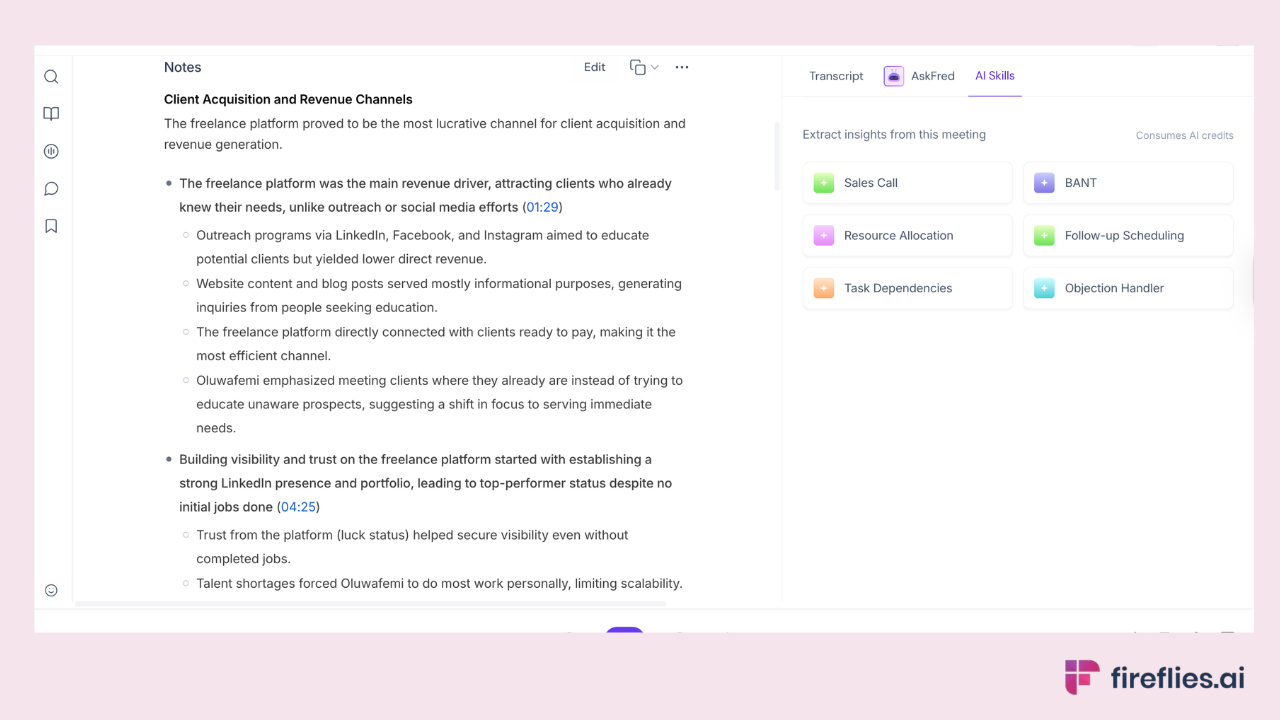
Fireflies free plan: The free plan includes unlimited transcription and 400 minutes of meeting storage per team. Paid plans start at $10/user/month. The Fireflies Zoom integration gives you a direct advantage over AI Companion, which requires a paid Zoom Workplace plan just to get started.
See how Fireflies connects to Zoom in under two minutes.
Explore the Fireflies + Zoom integration →
Other tools worth knowing
Otter.ai is a solid option for English-focused teams who want simple transcription with voice command features. It offers a free plan with 300 monthly minutes and supports real-time transcription.
However, language support is limited compared to Fireflies, and CRM integrations are restricted to higher-tier plans.
The mobile app is particularly strong for in-person interviews and face-to-face meetings where a laptop-based bot isn't practical.
Tactiq runs as a Chrome extension with no bot joining the call, which makes it appealing for users who want a lightweight, invisible setup.
The free plan includes 10 transcripts per month. It works well for Google Meet and Zoom but lacks CRM integrations and advanced analytics. It's the best option for users who prioritize discretion and don't want any visible recording indicator in the meeting participant list.
tl;dv offers a free plan with solid Zoom and Google Meet support, and it's known for easy video clip sharing. It covers the basics well but has fewer integrations and less language coverage than Fireflies. Its video highlight clips make it easy to share key moments from calls without sending a full recording, which is useful for product and research teams.
How to Transcribe a Zoom Recording After the Meeting
This is a separate Zoom meeting transcription use case from live note-taking.
If you need a Zoom recording transcript from an existing file, Zoom AI Companion cannot help. It only works on live meetings. Fireflies supports recording upload.
- Download your Zoom recording from the Zoom web portal (cloud recordings) or from your local device.
- Log in to your Fireflies dashboard.
- Click Uploads on the left navigation bar.
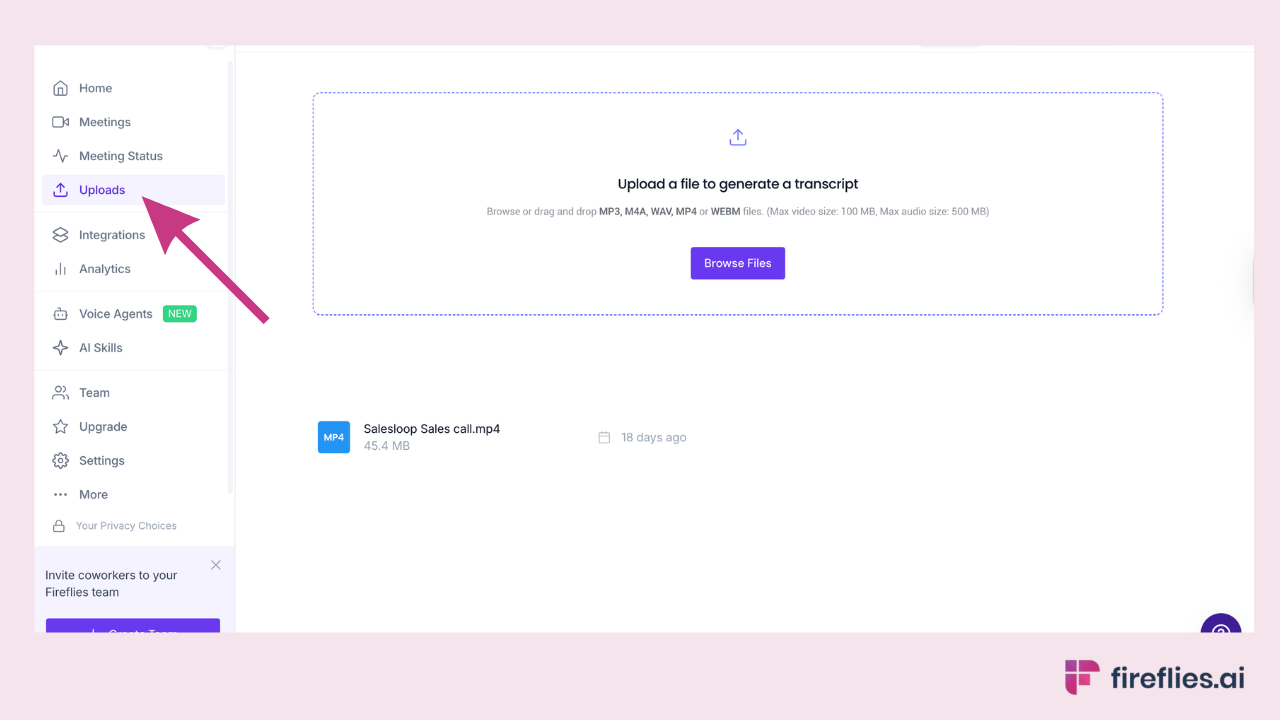
- Select your recording file. Fireflies supports MP3, MP4, M4A, and WAV formats.
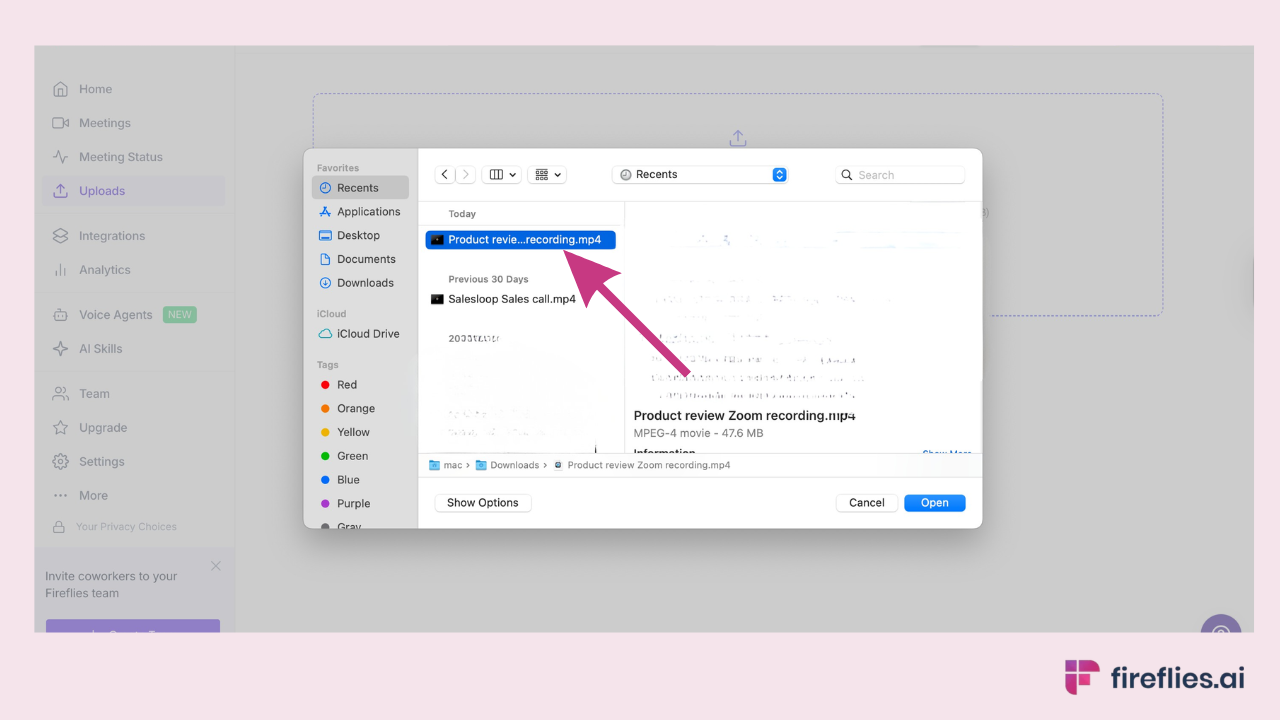
- Wait a few minutes. You'll receive the transcript, AI summary, and action items in your dashboard.
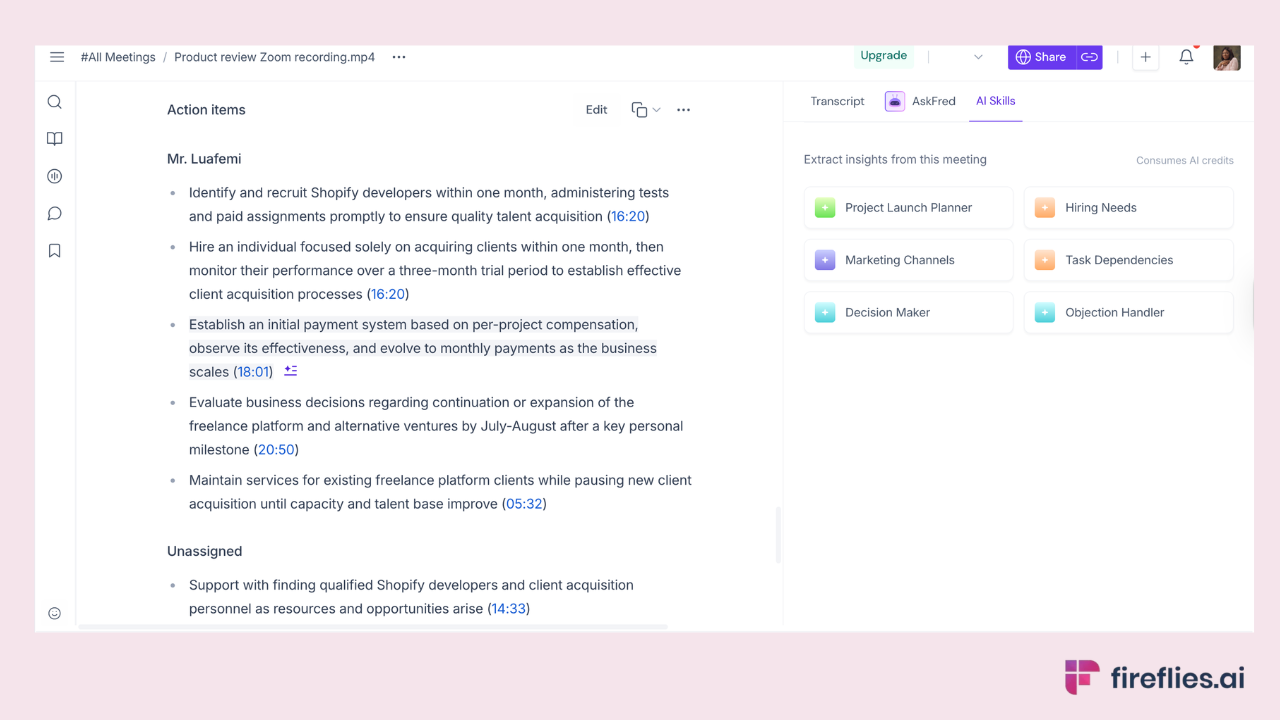
This also works for recordings from in-person meetings, phone calls, or other platforms.
This method is especially useful for teams inheriting recordings from previous employees, onboarding new team members who need context from past discussions, or compliance teams that need to review archived calls.
Fireflies processes most files in under five minutes, and longer recordings may take slightly more time depending on file size.
Zoom AI Companion vs. Fireflies vs. Other Tools
The verdict: Zoom AI Companion makes sense if your entire team lives in Zoom, you're on a paid plan, and you only need notes within Zoom's ecosystem.
Fireflies is the best ai notetaker for teams that need a free plan, cross-platform support, CRM integrations, or the ability to transcribe existing recordings. Otter works well for English-focused teams wanting simple voice-command features. Tactiq is the lightest-weight option if you just want a Chrome extension with no bot.
Note on privacy: Zoom AI Companion notifies all participants when AI features are active. Fireflies' bot appears as a visible participant in the call, so attendees know recording is happening. Tactiq's Chrome extension operates without any visible indicator to other participants.
Fireflies joins your Zoom calls automatically, transcribes every word, and delivers a structured summary with action items. Free plan available, no Zoom subscription needed.
FAQs
Does Zoom have a built-in AI note taker?
Yes. Zoom AI Companion is included with all paid Zoom Workplace plans (Pro, Business, Enterprise). It generates meeting summaries, action items, and supports in-meeting Q&A. It is not available on the free Zoom plan and may require admin enablement for business accounts.
Is Zoom AI Companion free?
It's included at no extra cost with paid Zoom Workplace plans starting at $14.16/user/month. There is no standalone free version. Users on Zoom's free plan cannot access AI Companion. A Custom AI Companion add-on with advanced features is available for $12/user/month on top of a paid plan.
How do I enable AI notes in Zoom?
Go to your Zoom account settings and enable AI Companion under the Meeting tab. For business accounts, a Zoom admin may need to enable this at the account level first. Once enabled, click the AI Companion icon during a meeting to activate smart notes and summaries.
How do I take notes during a Zoom meeting automatically?
Connect a tool like Fireflies to your calendar. It will auto-join your Zoom meetings, record the conversation, and deliver a transcript with an AI summary and action items after the call. No manual note-taking required. Alternatively, enable Zoom AI Companion if you're on a paid Zoom plan.
What is the difference between Zoom transcription and Zoom AI notes?
Zoom cloud recording transcription produces a raw VTT text file from a cloud recording. Zoom AI Companion (AI notes) generates a structured summary with topics, decisions, and action items, and does not require a cloud recording. They are separate features that can be used independently or together.
How accurate is Zoom transcription?
Zoom does not publish official accuracy figures. Accuracy varies depending on audio quality, accents, and background noise. Fireflies reports 99% accuracy for English and 95% for other languages across 100+ supported languages.
Can Fireflies work with Zoom?
Yes. Fireflies integrates directly with Zoom through calendar auto-join. It joins your Zoom meetings as a participant, records the conversation, and delivers a full transcript with AI summary and action items. It works on any Zoom plan, including free.
How do I get a transcript from a recorded Zoom meeting?
Download the recording from Zoom's cloud portal or your local device, then upload it to Fireflies. Fireflies will generate a full transcript, AI summary, and action items within minutes. Zoom AI Companion cannot transcribe existing recordings after the fact.
What is the best free AI note taker for Zoom?
Fireflies offers the most complete free plan for Zoom users, including unlimited transcription, 400 minutes of storage, and support for 100+ languages. It works across Zoom, Google Meet, and Microsoft Teams. Tactiq and Otter also offer free plans with more limited features. You can also transcribe Google Meet and other platforms using the same Fireflies account.
Conclusion
Zoom AI Companion handles the basics for paid Zoom users who only need notes within Zoom. Fireflies delivers the most complete package: free plan, cross-platform support, CRM integrations, 100+ languages, and recording upload for after-the-fact transcription.
Chrome extension tools like Tactiq offer a lightweight, bot-free alternative for simpler needs.
For the best ai notetaker experience across Zoom and beyond, Fireflies covers every scenario.
Start with the comparison table above to match your specific requirements. If you're unsure, Fireflies' free plan lets you test the full workflow without committing to a paid subscription. Connect your calendar, let the bot join your next Zoom call, and see the output for yourself.
For a deeper look at meeting transcription across platforms, see our full guide.